
TL;DR
RepCard's new Import Contacts flow is live for Premium and Company plans. Bulk upload CSVs up to 200 MB, auto-map columns, assign owners and statuses inside the import, handle duplicates three ways, and route leads to subcompanies in one move. Five steps. Web Admin Panel only.
The new Import Contacts flow is now live in the RepCard Admin Panel. You can now bulk upload up to 200 MB of leads, assign ownership inside the import, control how duplicates get handled, and route entire lead lists to subcompanies in one move.
Standard Import runs in five steps:
- Upload your CSV
- Match columns
- Match owners
- Match statuses
- Handle duplicates
Distribution Import adds a routing step so parent companies can ship leads to subcompanies by any column they choose. Both flows are walked below, with the actual screenshots.
For companies importing high volumes of leads, the math is simple. Every hour ops spends cleaning CSVs is an hour reps aren't working leads. Every manual owner reassignment is a chance for a record to slip. The new flow puts all of that work in one workflow. Faster imports, cleaner ownership, real audit visibility. That means hours back every week and leads that actually get worked.
Where to start
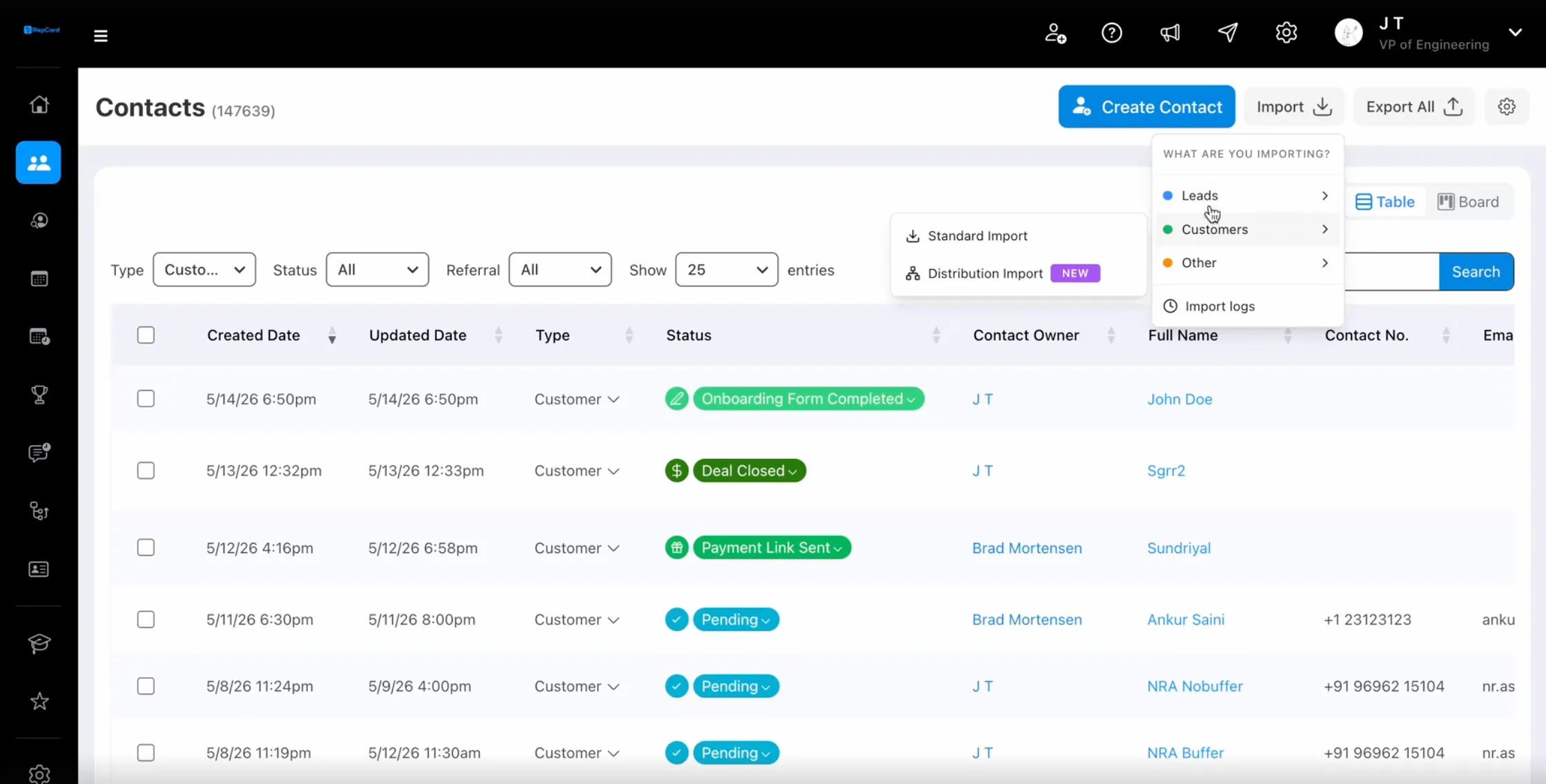
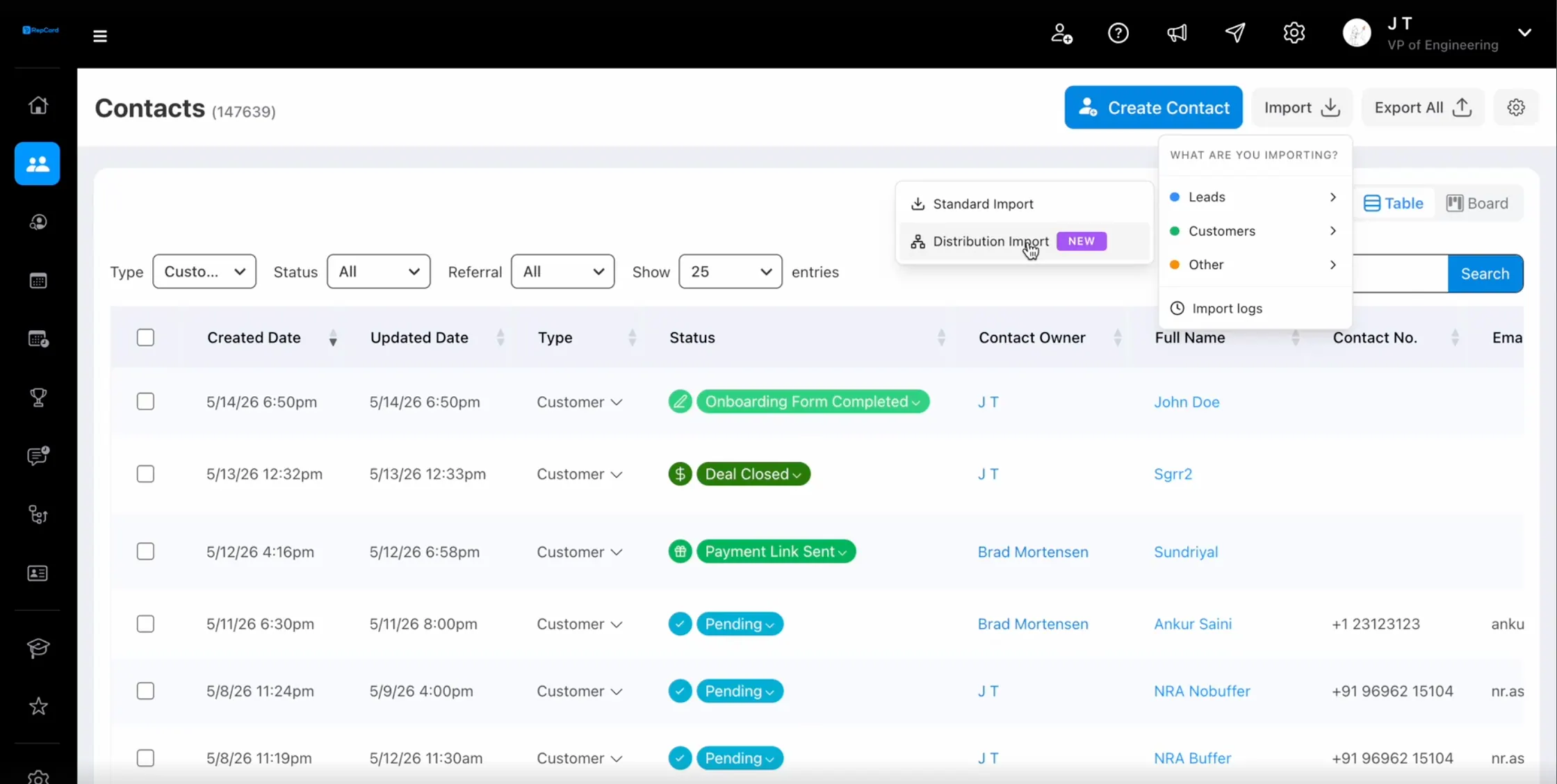
Open Contacts in the Admin Panel and click Import. Pick your contact type (Leads, Customers, or Other), then choose Standard Import or Distribution Import.
The 5-step Standard Import
Standard Import handles bulk uploads into your own company. Each step is one screen. Move forward only when the previous step is mapped.
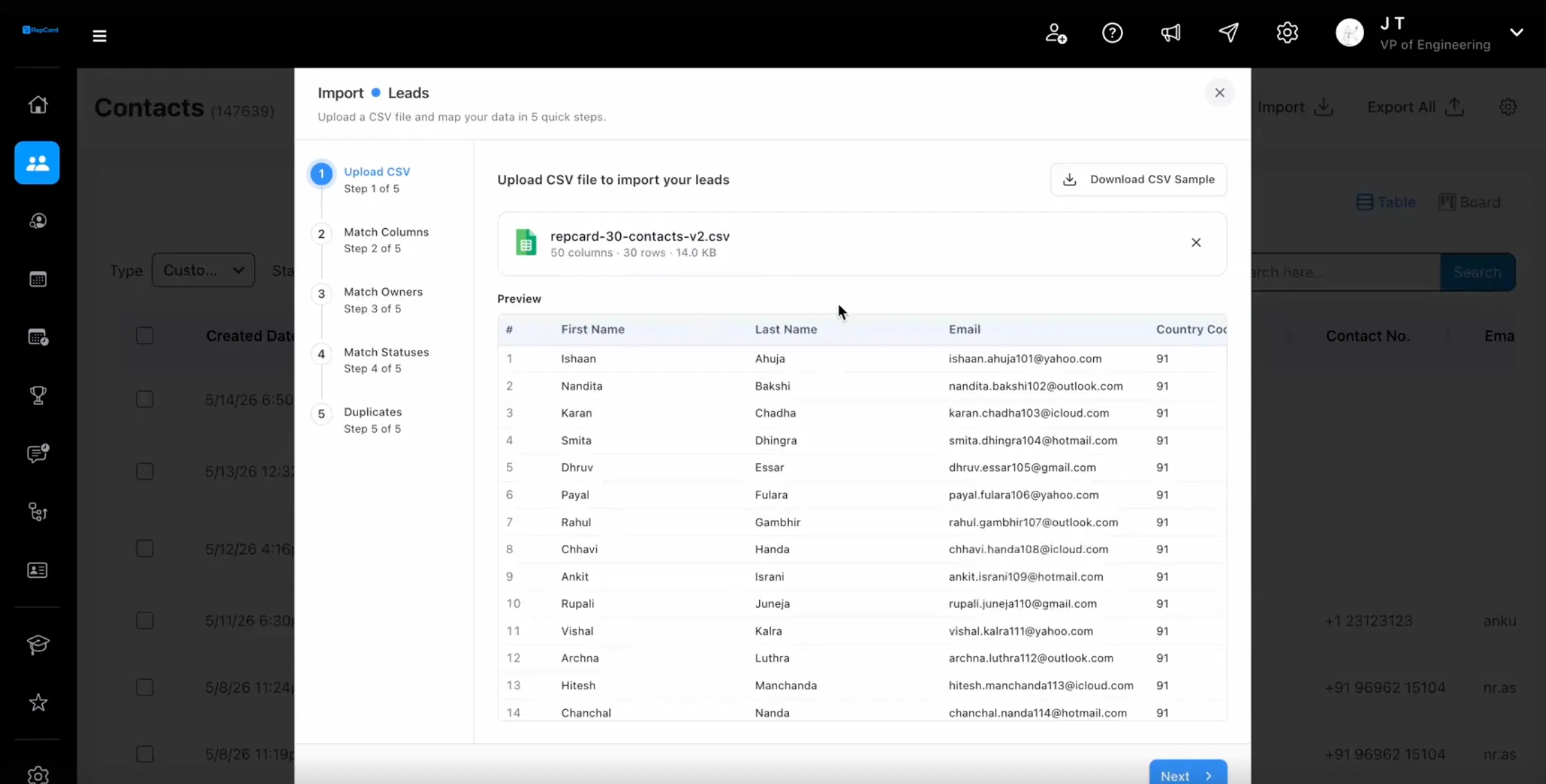
Step 1: Upload your CSV
Drag your file in. RepCard reads the row count and shows a preview of every column. Need a template? Click Download CSV Sample inside the upload step. Templates are contact-type specific, so the columns for Leads differ from Customers.
CSV only at launch. 200 MB max, well above the typical CRM ceiling (Microsoft Dynamics, for example, caps non-zip imports at 8 MB).
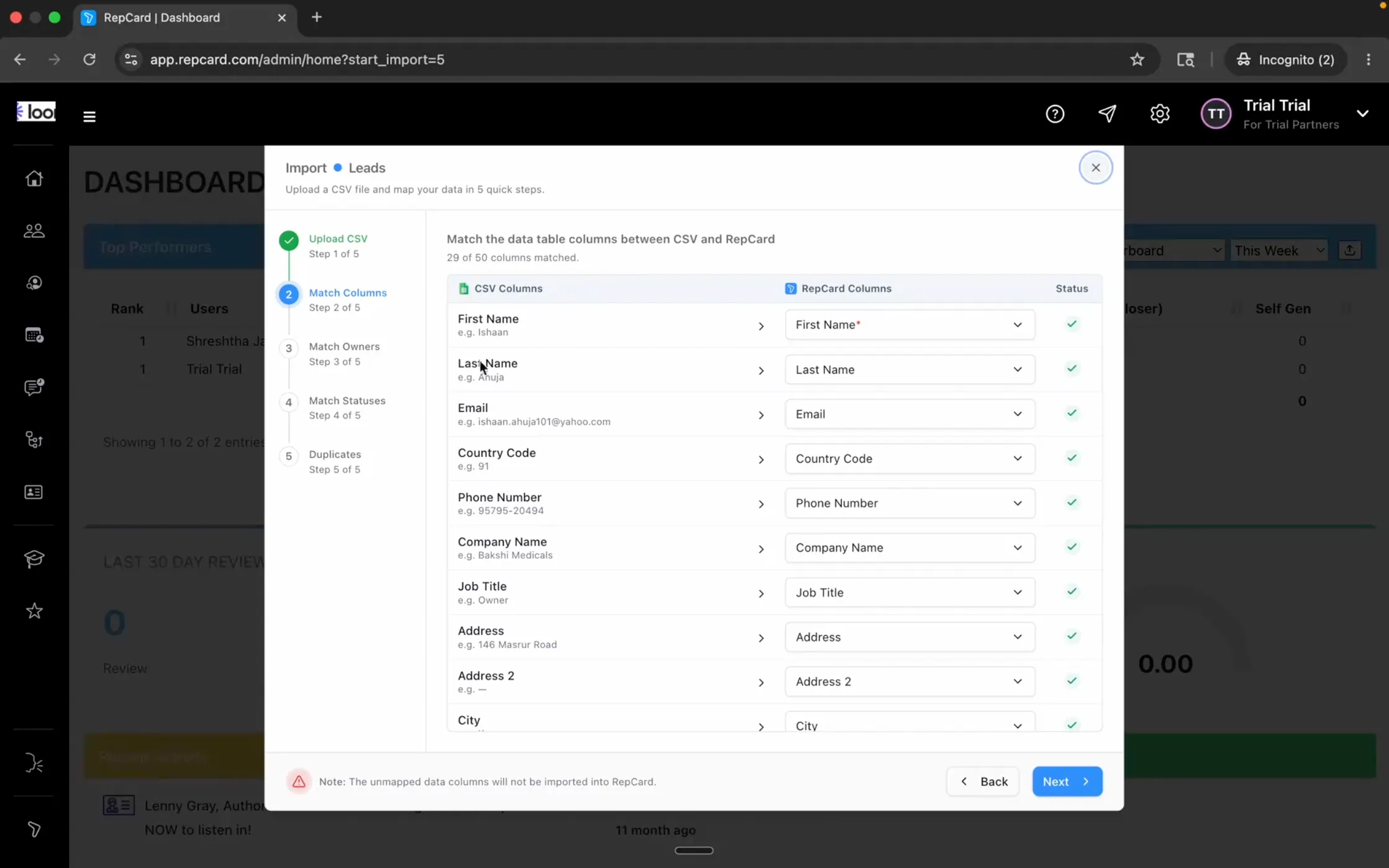
Step 2: Match columns
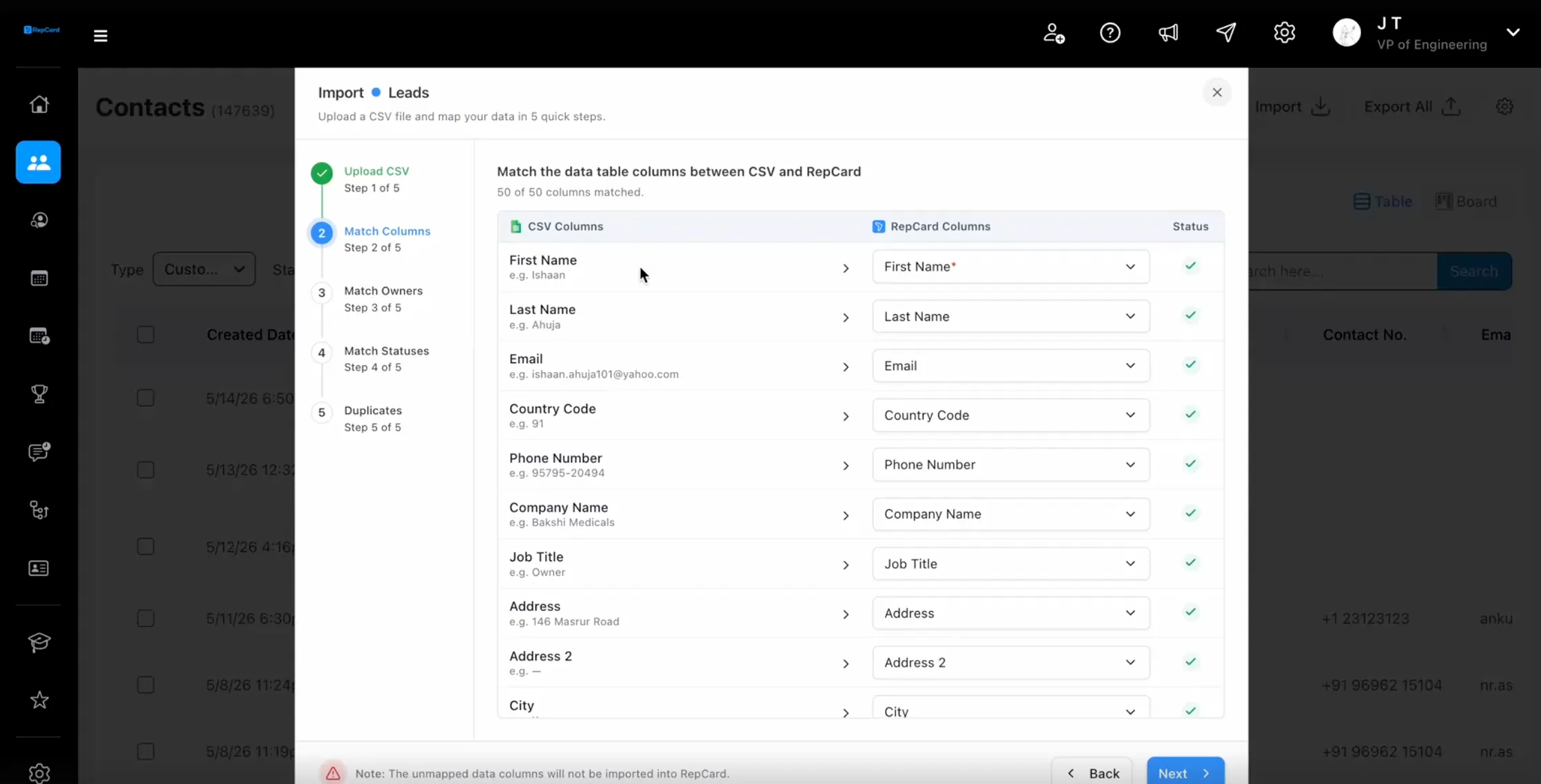
RepCard reads your CSV headers and auto-matches them to fields in your account using string recognition. Green checks mean it found a match. Anything unmapped is dropped on import.
Custom fields you have built in RepCard show up as mapping destinations too. Confirm your mapping is complete before moving on.
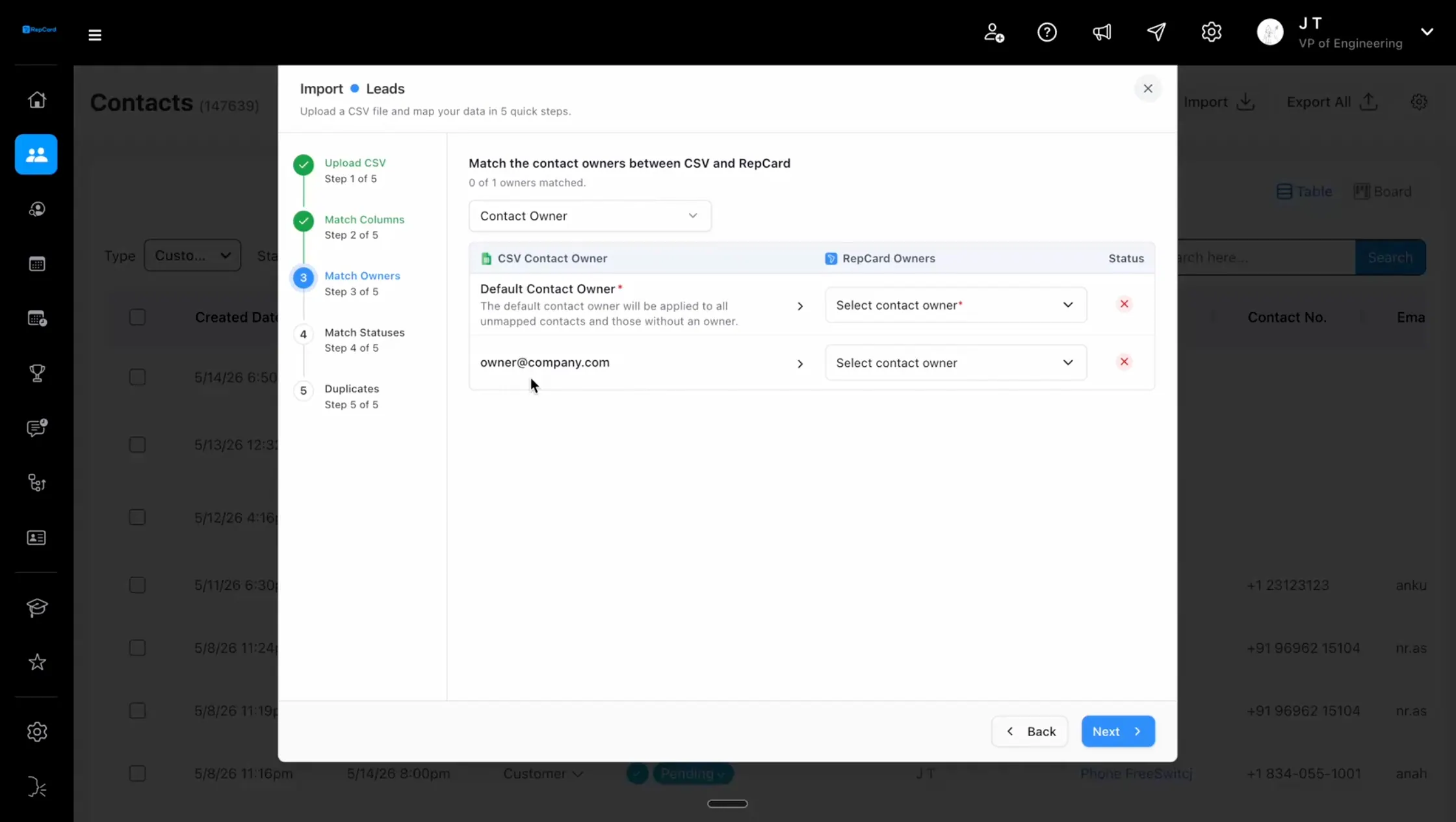
Step 3: Match owners
Set a default Contact Owner that catches anyone without an explicit assignment, or map each owner individually.
The power move on this step: the dropdown at the top lets you switch the matching criteria from the Owner column to any column in your CSV. Switch it to City and every contact in Phoenix can be assigned to the Phoenix rep. Switch it to Region and you can hand off entire regions in one move. Sales departments lose roughly 550 hours a year per rep to bad CRM data, much of it tied to broken ownership. This is where you cut that.
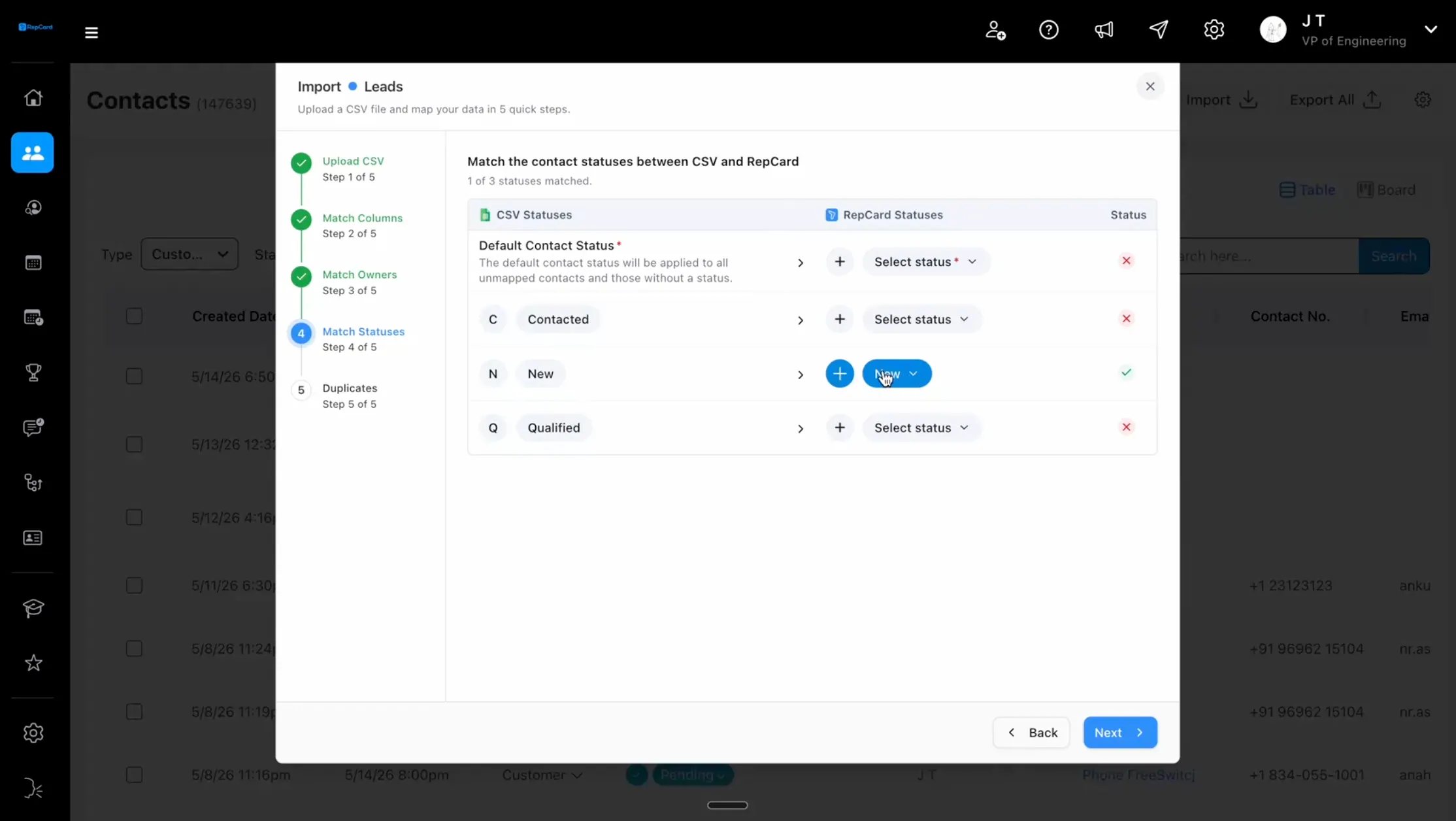
Step 4: Match statuses
Same model as owners. Map your CSV's status values to RepCard statuses on the right. Auto-match runs on identical strings.
RepCard does not auto-create new statuses from your CSV. If a status in your file does not exist in your account, map it to an existing one or build the new status in RepCard first (Settings, then Statuses).
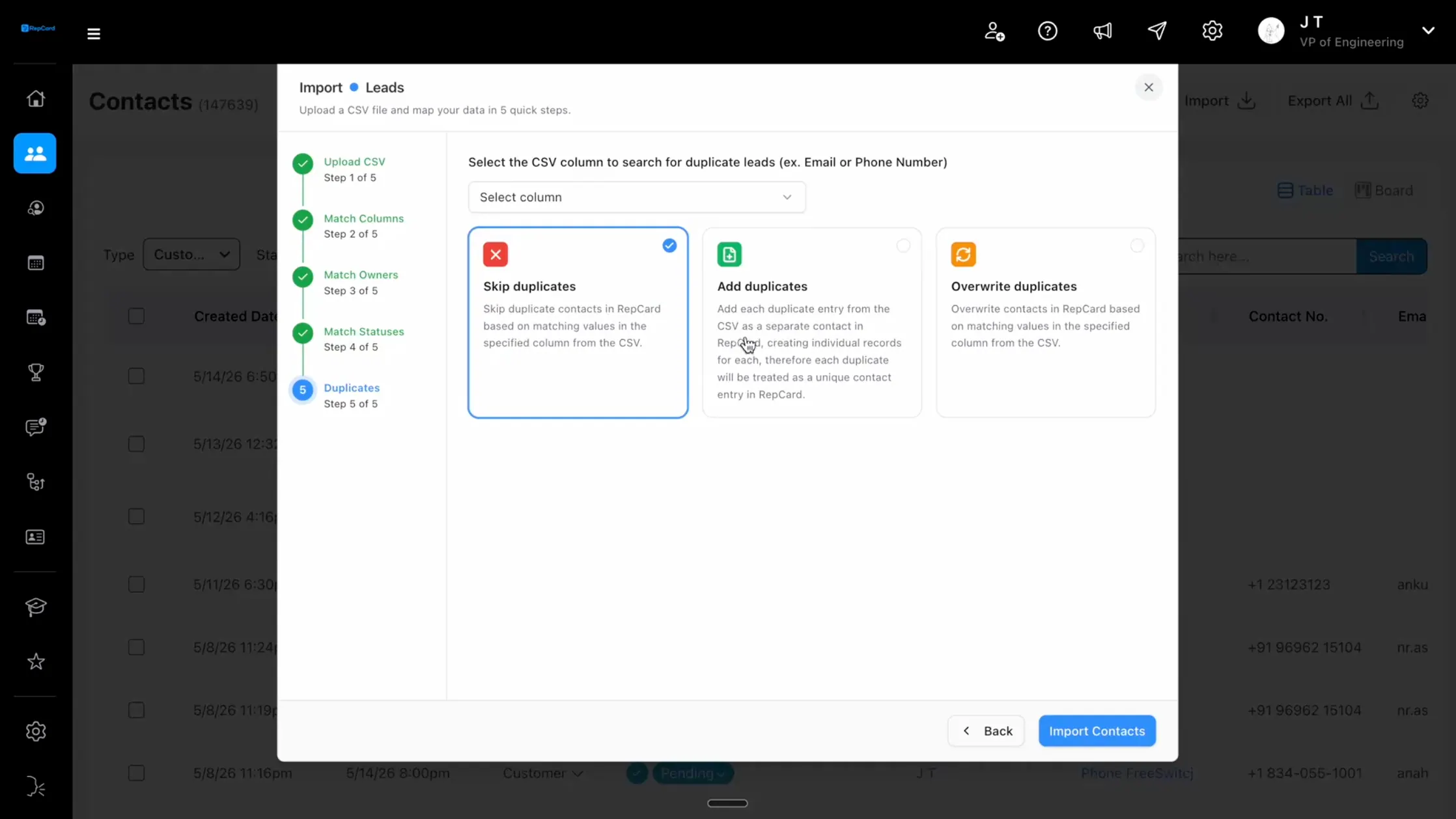
Step 5: Handle duplicates
Pick the column that defines a duplicate (Email and Phone Number are the common ones), then pick a behavior:
| Mode | What it does | When to use it |
|---|---|---|
| Skip | Duplicates are dropped from the import | Your CRM is the source of truth |
| Add | Duplicates come in as new records | You want multiples on purpose (rare) |
| Overwrite | Existing records get refreshed with the CSV values | Your CSV is the most current source |
Bad data is expensive. IBM research cited by Harvard Business Review pegs the annual cost of poor data quality at $3.1 trillion for U.S. businesses, and 92% of duplicate records get created during data entry. Step 5 is where you stop them.
Overwrite is irreversible. Test on a small batch before running it on a 4,000-row list.
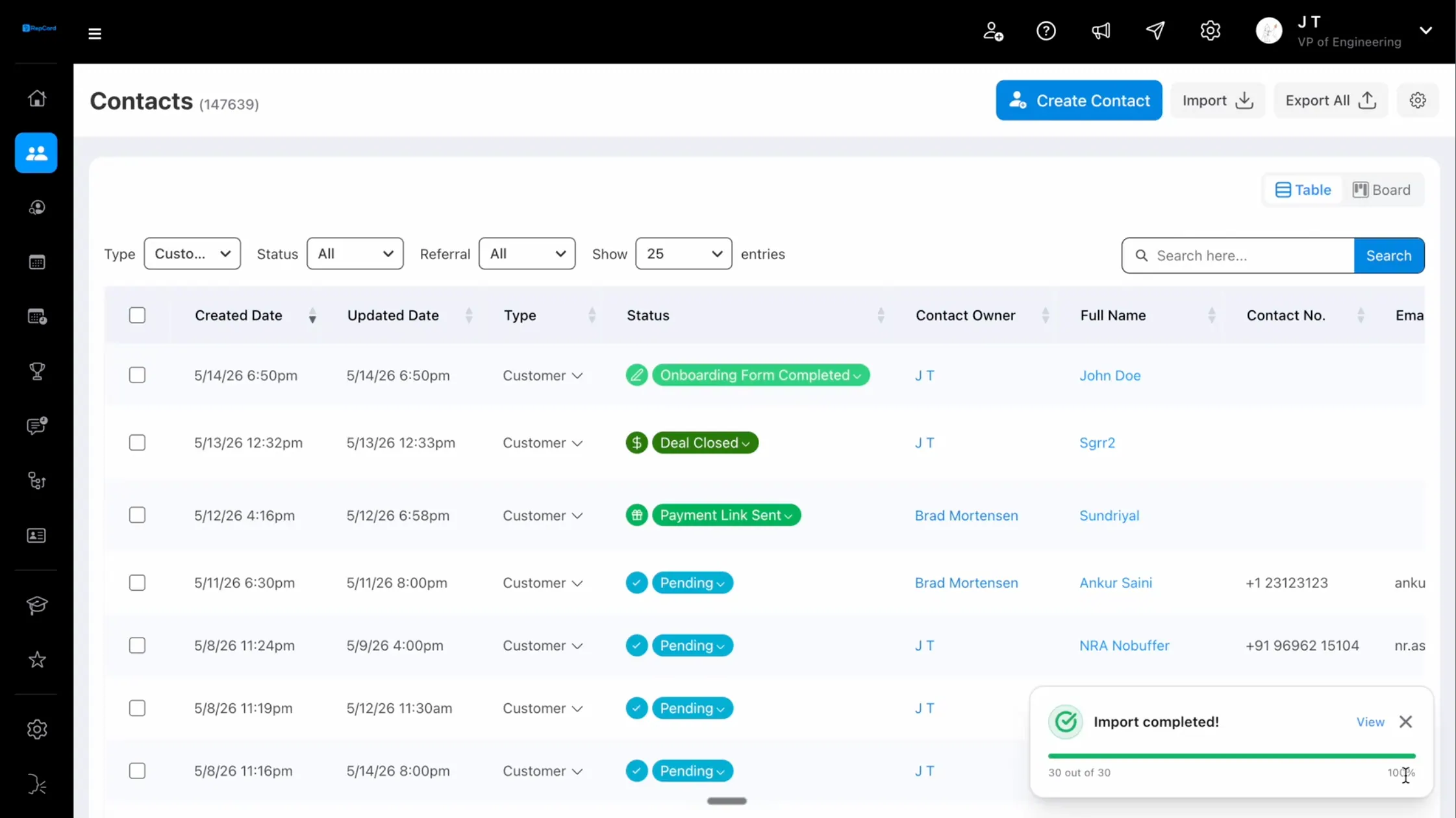
Hit Import
A live progress bar runs while the import processes. When it finishes you get a toast on the Contacts page with a View link to the Import Log.
How do you distribute leads to subcompanies?
Distribution Import lets a parent company route leads to subcompanies in one flow. Go to Contacts, then Import, then Leads, then Distribution Import, upload your CSV, then pick the column you want to use as the routing criteria.
Every unique value from that column appears on the left. Assign each value to a subcompany on the right. You can also route leads back to your own parent company, which matters if you want to hold a slice of leads in-house and ship the rest down.
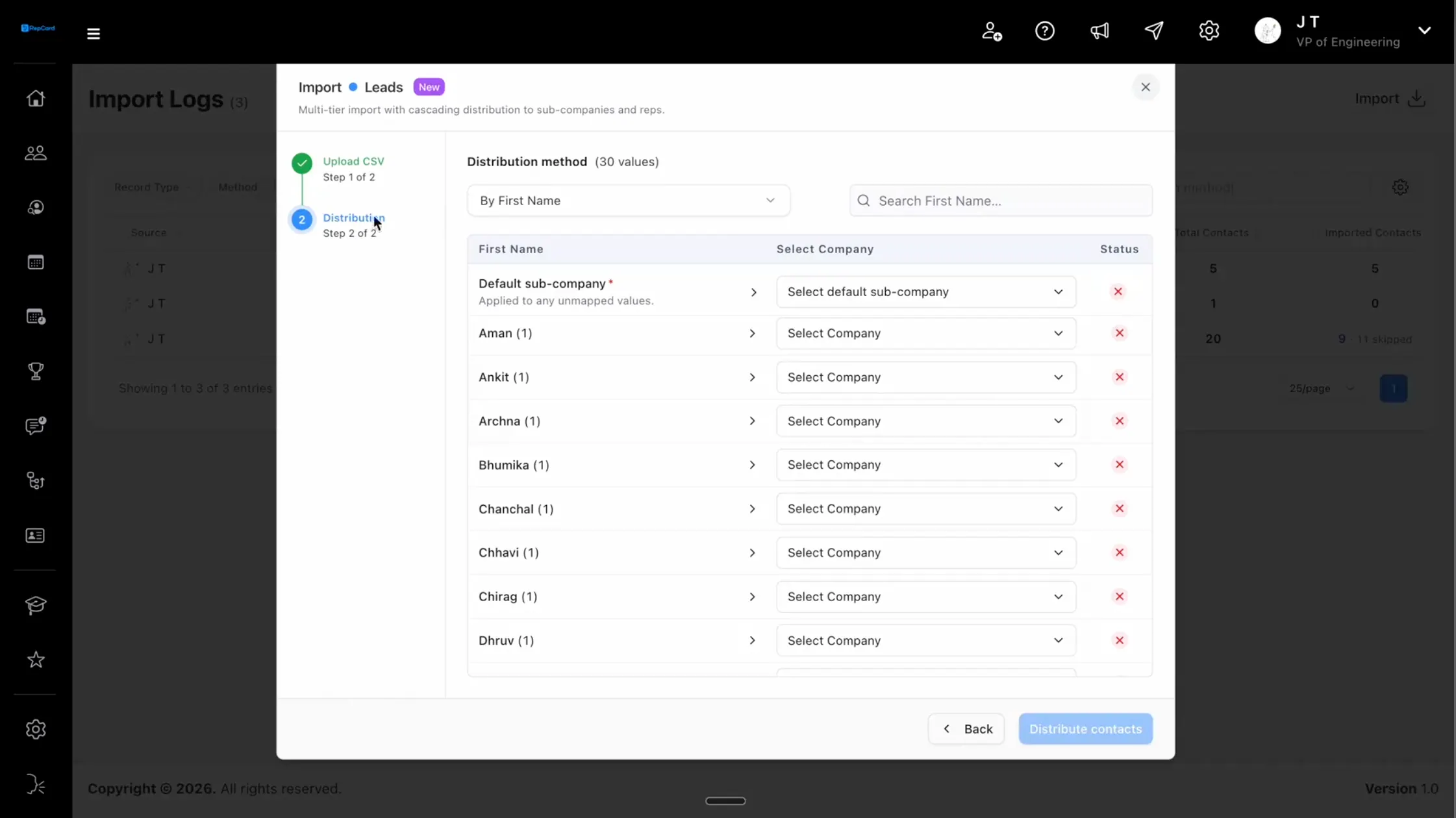
The Default Sub-Company rule applies to any value you do not explicitly map. Specific mappings always win.
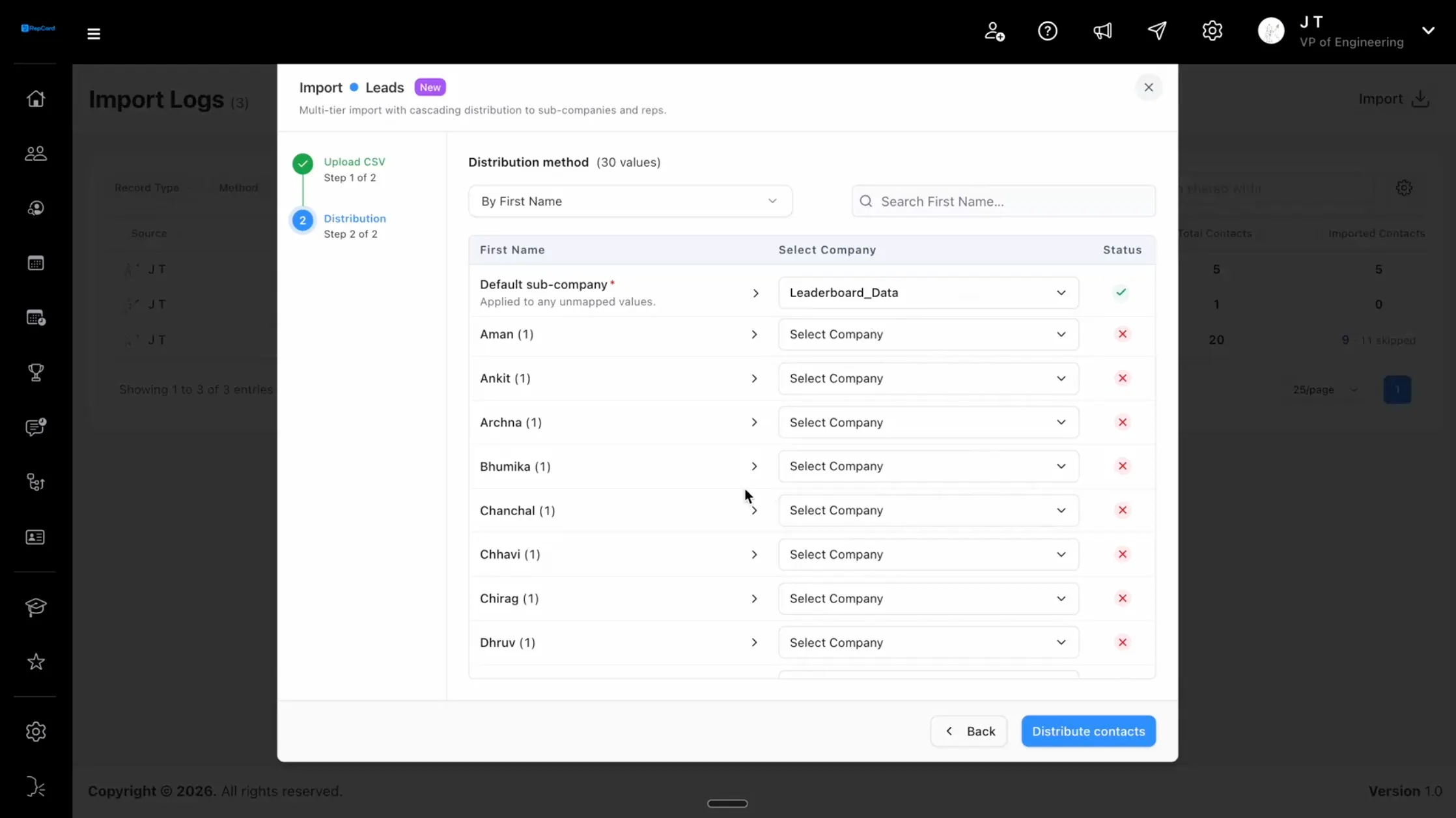
Hit Distribute Contacts. The leads ship.
The Boom notification
Subcompanies see a Boom notification the moment they log in: "You've got new leads. Start importing or remind me later."
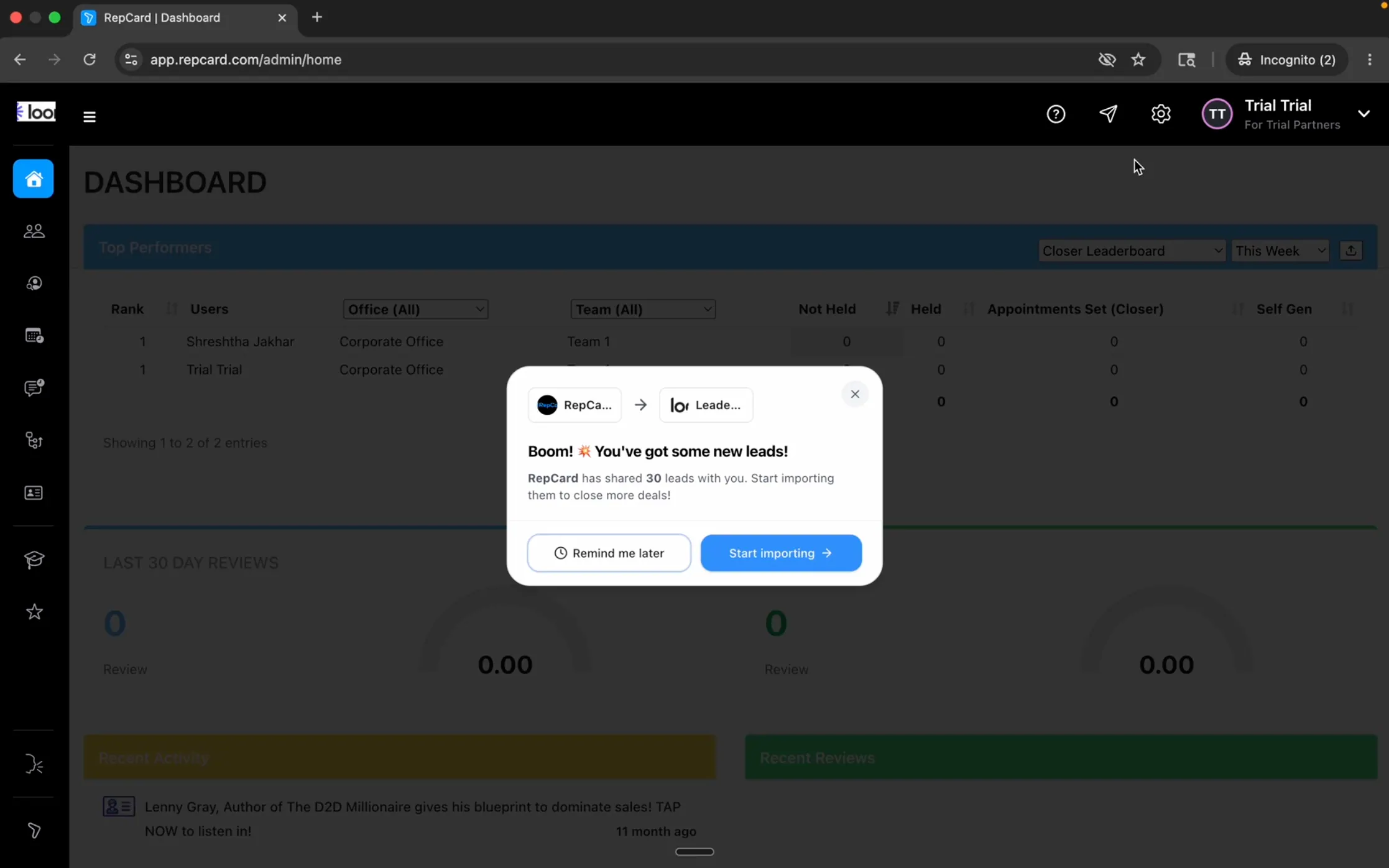
Start Importing opens the standard 5-step flow with the file pre-loaded. Remind Me Later returns the popup once a day for 15 days, then stops. Either way the file is waiting in their Import Logs.
Speed matters here. Companies that respond to a lead within an hour are nearly seven times more likely to qualify it than those that wait even two hours. When leads bottleneck in a parent company inbox, that's the cost. Distribution Import compresses the handoff to seconds.
How do Import Logs work?
Import Logs is the audit trail. Every file you have ever uploaded is listed with file name, who you shared it with, total contacts vs imported contacts, date and time, method (Standard or Distribution), status, and source.
Click any row to see every contact in that import. Search by file name or uploader. Filter by record type, method, source, or shared-with subcompany.
Source attribution displays differently depending on whose view you are in. In a subcompany account, Source shows as the parent company that sent the leads. In the parent company account, Source shows as the user who ran the import. Both sides get clean attribution.
Deleting an Import Log also deletes every contact imported through it. Irreversible. RepCard surfaces this in the confirmation, but leave logs in place unless you are cleaning up test data.
Who is this for and what do you need?
Built for: door-to-door teams, fiber and telecom operations, multi-state home services brands, franchised businesses, and any parent company with subcompanies underneath it. Most useful when you regularly import lists in the hundreds or thousands and need to route them to multiple teams or offices.
Not built for: solo reps without territory complexity, or any team without high-volume CSV imports.
To use it, you need:
- Premium or Company plan
- Import Contact permission in Roles & Permissions
- CSV file (max 200 MB)
- Subcompanies configured (Distribution Import only)
- Web Admin Panel (not on mobile)
Real-world scenarios
Fiber company opens five new markets. Operations uploads a 4,000-row CSV. Picks the Market column as the distribution method. Maps each market to a regional subcompany. Five markets get Boom notifications next time their managers log in. Done in under 20 minutes.
Pest control brand reassigns territory. Admin uploads a fresh list. On Match Owners, switches the criteria from the Owner column to City. Every Tucson contact now belongs to the Tucson rep. Same for Mesa, Chandler, Gilbert. Zero post-import cleanup.
Roofing company imports a dialer export. Picks Phone Number as the duplicate criteria. Selects Overwrite. Existing records refresh with the latest dialer data. No doubles.
Franchise audits lead distribution. Operations filters Import Logs by file name and shows leadership exactly how many leads went to each location, who imported them, and when.
The bottom line
Three things in one flow: bulk import with smart mapping, configurable duplicate handling, and parent-to-subcompany lead distribution. If you are on Premium or Company, open Contacts, then Import in your Admin Panel and run a small batch. If you are evaluating, book a demo and we will walk you through how bulk list imports can work for your company's workflows.
Key Takeaways
- 1CSV uploads up to 200 MB per file, well above the standard CRM ceiling.
- 2Smart column matching auto-maps standard fields and surfaces every custom field.
- 3Assign owners inside the import by Owner, City, Region, or any column in your CSV.
- 4Three duplicate-handling modes (Skip, Add, Overwrite) with configurable match criteria.
- 5Distribution Import routes leads from a parent company to subcompanies in one workflow, with a Boom notification on the receiving side.
Frequently Asked Questions
CSV only at launch, up to 200 MB per file. Excel files need to be saved as CSV first. Contact-type-specific templates are available inside the upload step.
No. Build new statuses in your account first (Settings, then Statuses), then map your CSV values to them.
The log and every contact imported through it are deleted. Irreversible. RepCard surfaces a clear confirmation before deletion.
Not at launch. The new Import Contacts flow runs on the web Admin Panel only.
The parent company needs subcompanies configured before Distribution Import is available. On the subcompany side, users with the Import Contact permission see the Boom notification on next login and run the file through the standard import flow.
Related RepCard Features
Related Articles

The Four Pillars of a Sales Operating System
A Sales Operating System unifies recruiting, training, selling, and marketing for field sales teams. See why fragmented tool stacks cost you reps.
Read more
Best Contact Management Software for Sales
Stop losing leads to disorganized contact management. Compare the best contact management solutions for sales teams and learn what features matter most.
Read more
7 Best SPOTIO Alternatives for D2D Sales Teams in 2026
SPOTIO is a strong field sales platform, but it's not the only option. Compare 7 alternatives ranked by what D2D sales managers actually need in 2026.
Read more